
HELP CENTER
Reading the Timesheets List
The Timesheets List shows the timesheets of drivers connected to your company. You can filter by period and Passenger.
Last updated: 2026-11-04
Filtering timesheets
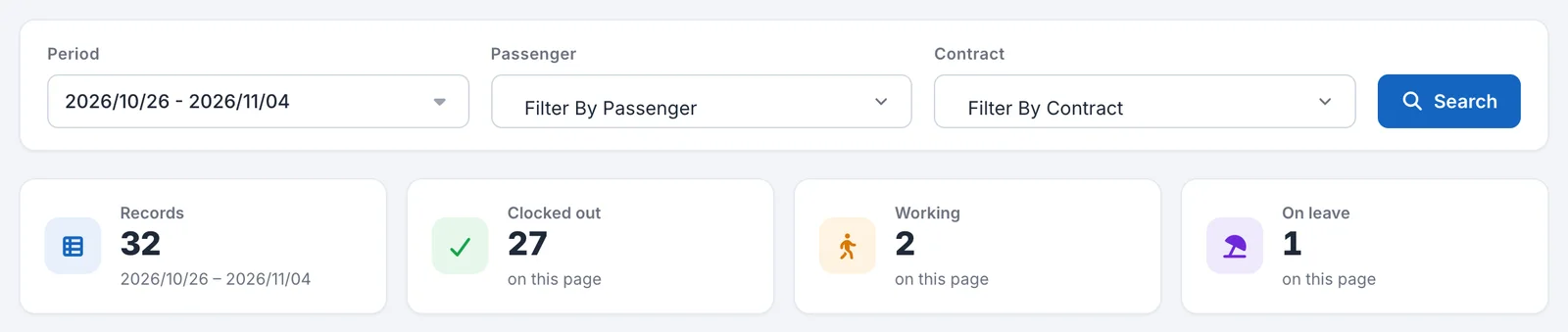
Open “Timesheets List” under “Attendance” in the left menu to see drivers’ (Workers’) timesheets listed by day. Today’s date is shown first.
- Choose the period you want to check in “Period”.
- If needed, choose a Passenger in “Filter By Passenger”.
- Click “Search”.
Depending on your settings, you can also filter by contract (Contract) with “Filter By Contract”. If it does not appear, it is disabled in your settings. Please contact DriveZ.
Only days with a timesheet or leave record are listed. Days with no records are not shown.
Reading the list
| Column | Description |
|---|---|
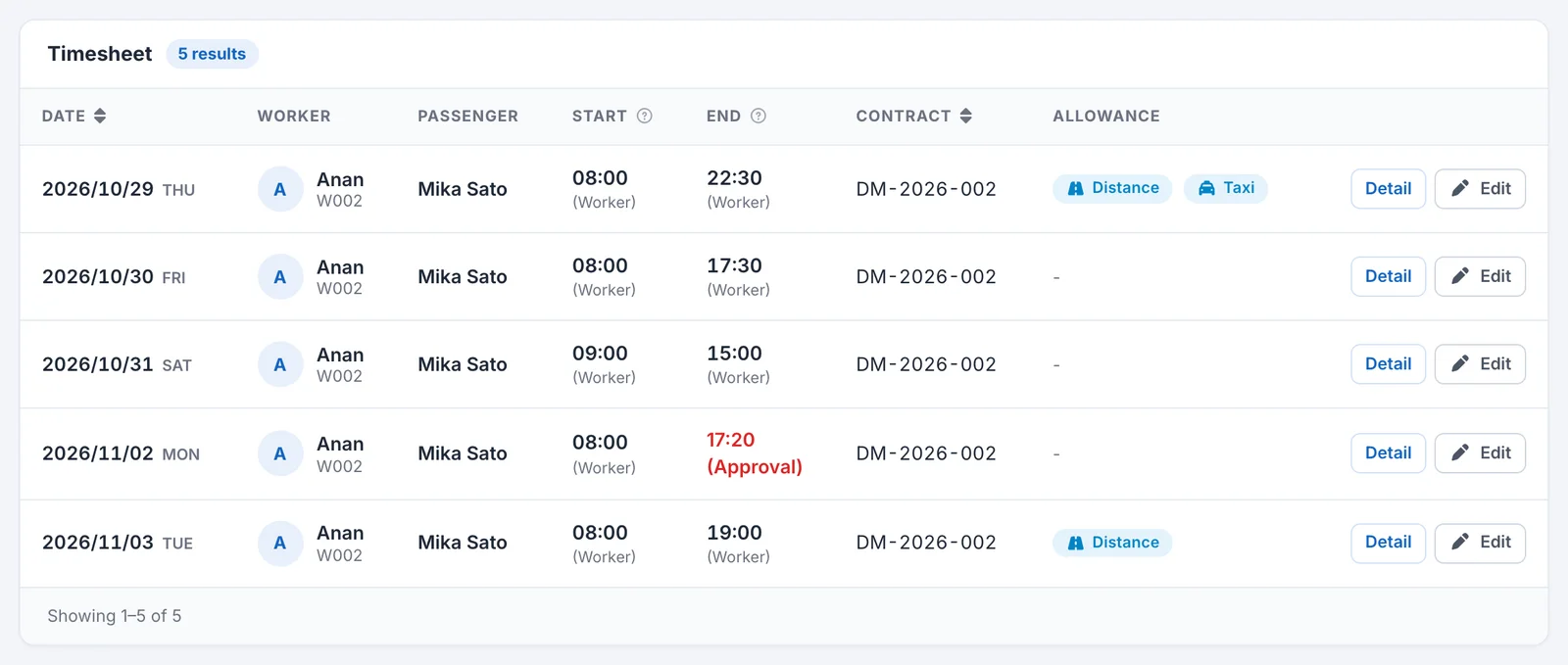
| Date | The work date. Click the heading to sort. Leave days have a “Leave” badge. |
| Worker | The driver’s name and Worker ID |
| Passenger | The assigned Passenger. ”-” is shown if there is none. |
| Start | The start time. The person who stamped it is shown below the time. |
| End | The end time. The person who stamped it is shown below the time. |
| Contract | The contract number. Not shown, depending on your settings. |
| Allowance | Timesheets that qualify for an allowance show “Distance”, “Taxi”, or “Overnight” badges. ”-” if none apply. |
Up to 100 entries are shown per page. Use the controls at the bottom of the page to move to the next page.
Click “Detail” on a row to open the timesheet details. For more, see Viewing timesheet details.
When the end has not been recorded yet
For a timesheet that has a start time but no end yet, “End” shows “Working”.
The icon next to a time
If a no-location icon (No Location) appears next to a time, the location for that stamp could not be obtained.
Who stamped it
The parentheses below a time show who recorded that time.
| Display | Meaning |
|---|---|
| Worker | The driver stamped it themselves |
| Passenger | A Passenger recorded it |
| Admin | A DriveZ administrator recorded it |
| Company | Recorded with your company account |
When you see “(Approval)”
“Start” or “End” may show a time with “(Approval)”. This means a request is pending for a time that has not been stamped yet. The time shown is the requested time.
Click the time to open the “Approvals” screen filtered to that Worker and that date. To approve or reject, see Approving or rejecting stamp requests.
Reading the counts at the top
Four numbers are shown above the list.
| Display | What is counted |
|---|---|
| Records | All entries matching the chosen period and conditions. This is the total even when the list spans several pages. |
| Clocked out | The number of timesheets recorded through the end. Current page only. |
| Working | The number of timesheets with a start only and no end yet. Current page only. |
| On leave | The number of leave records. Current page only. |
“Clocked out”, “Working”, and “On leave” count only the page being shown. If there are multiple pages, they are not overall totals.
When a day has multiple records
Depending on your settings, rows in the list show a “Detail” button that opens the “Day Detail” screen, which combines all the records for that day. In this case, “Passenger” and “Allowance” show ”-”. For more, see Viewing timesheet details.