
HELP CENTER
Approving or rejecting stamp requests
In Approvals, you can approve or reject stamp requests from drivers. An approved request is applied to the timesheet and cannot be undone.
Last updated: 2026-11-04
Reading the list
Open “Approvals” under “Attendance” in the left menu to see the list of stamp requests sent to your company’s Passengers. Pending requests are shown first.
| Column | Description |
|---|---|
| Type | The type of request: “IN” (start), “OUT” (end), or “IN/OUT” (start and end). |
| Date | The work date |
| Worker ID / Worker | The Worker the request is for |
| Start | The requested start time. If the request is pending and the timesheet already has a start time, that time is shown under “Current”. |
| Reason (Start) | The reason for the start request. Click the note icon to see the details. |
| End | The requested end time. “Current” is shown the same way as for “Start”. |
| Reason (End) | The reason for the end request |
| Status | Pending rows show “Approve” and “Reject” buttons. Processed rows show the result and who processed it. |
“Create”, “Update”, and “Delete” under a time show what the request does.
| Label | Meaning |
|---|---|
| Create | A request to record a new time |
| Update | A request to change an existing time |
| Delete | A request to delete the timesheet |
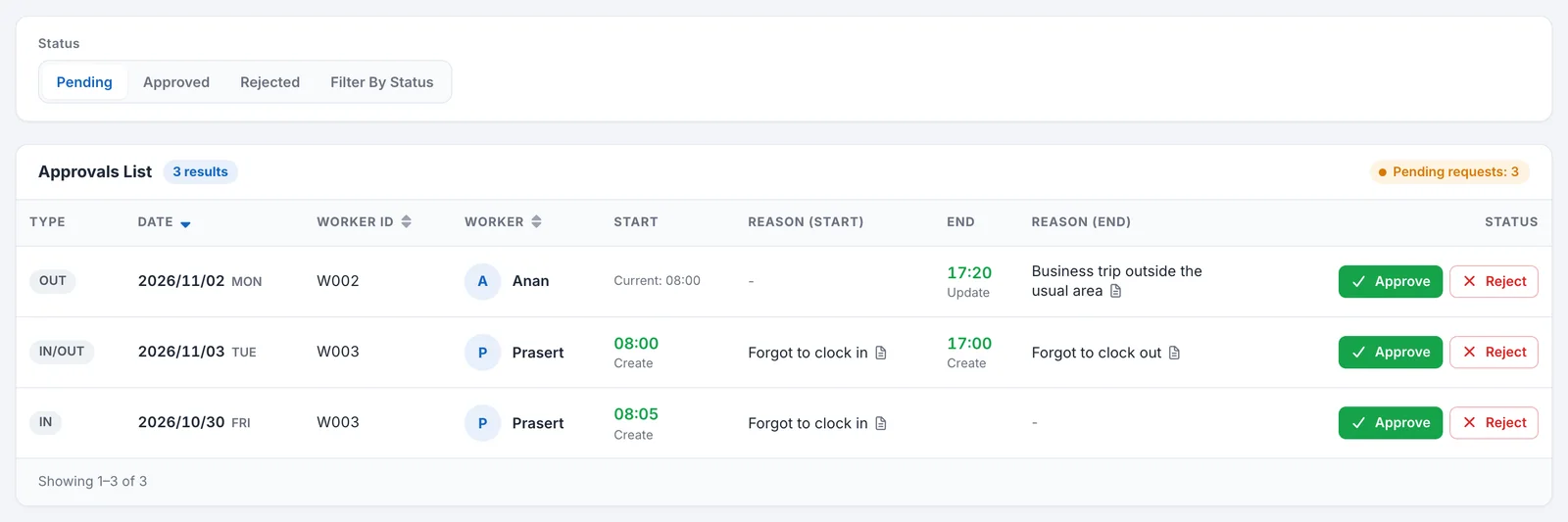
Approving or rejecting
- Check “Date”, “Worker”, “Start”, “End”, and the reason.
- Click “Approve” or “Reject”.
- If a confirmation message appears, check the details and continue.
After you approve, “Success to Approve” appears. After you reject, “Success to Reject” appears. If a request cannot be approved, the reason is shown on the screen.
Before you act
- Neither approving nor rejecting can be undone. Check the details before you click.
- When you approve, the requested time is applied to the timesheet.
- When you reject, the requested time is not written to the timesheet.
- If you approve a “Delete” request, that timesheet is deleted.
- For a time you approved, the person who stamped it is shown as “Company” in the Timesheets List.
When there are both start and end requests
On the same day, a start request and an end request may appear separately. In that case, note the following.
- You cannot approve an end (OUT) request while the start request is still pending. Process the start request first.
- If you reject a start request, any pending end request for the same Passenger is also rejected.
Leave requests are not handled on this screen
Leave requests (Leave Request) do not appear on this screen, and you cannot approve or reject them here.
Checking the status of requests
Use the buttons above the list to switch which requests are shown.
| Button | Requests shown |
|---|---|
| Pending | Waiting for approval |
| Approved | Already approved |
| Rejected | Already rejected |
| Filter By Status | All requests, regardless of status |
“Pending requests”, to the right of the list heading, shows the number of pending requests when there are any.
If you opened this screen by clicking an “(Approval)” time in the Timesheets List, only the requests for that Worker and that date are shown. To remove the filter, click “Clear”.
Approving in the Passenger’s app
Passengers can also approve or reject requests from the app. For the steps in the app, see Responding to check-in/check-out approval requests.