
HELP CENTER
Exporting timesheet data as CSV or Excel
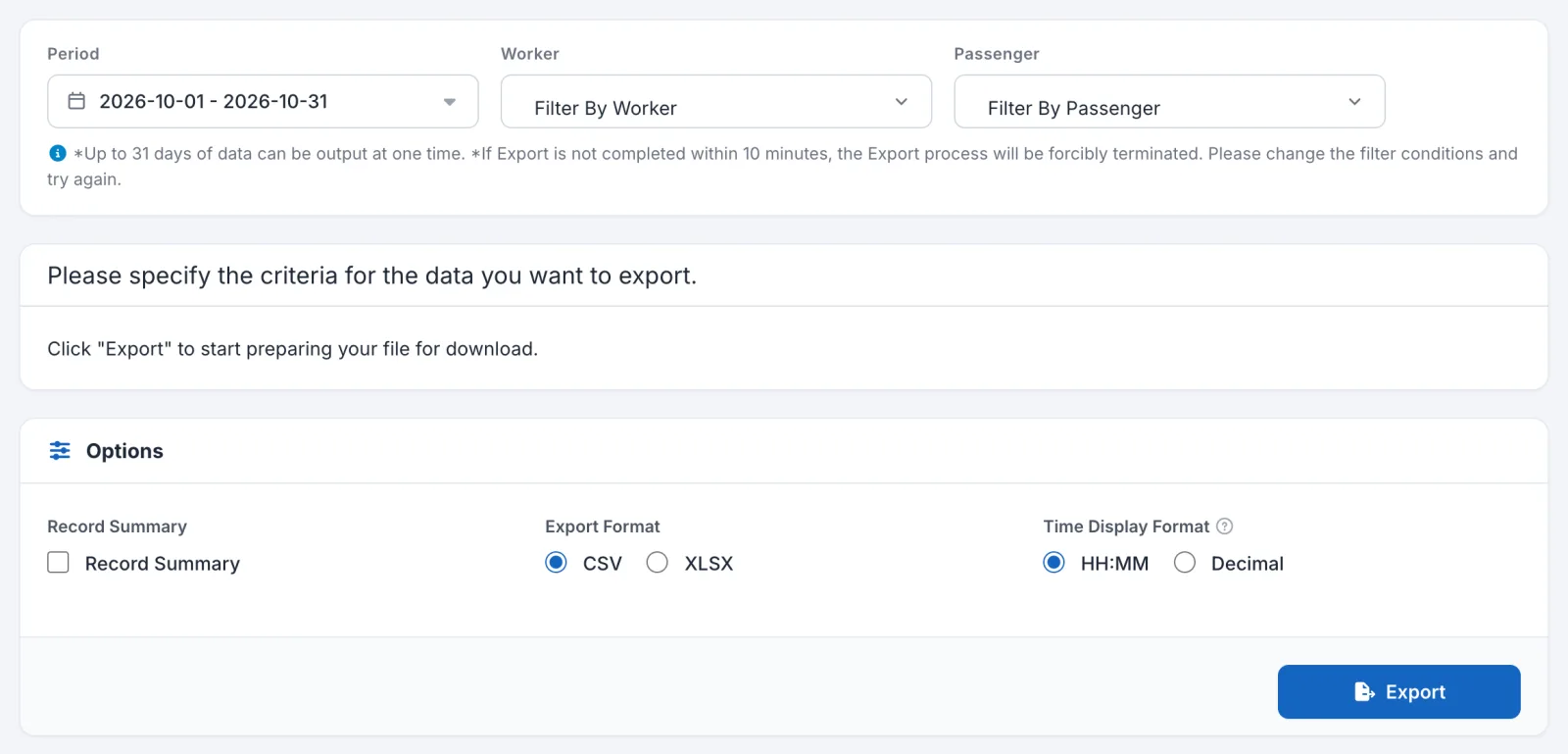
In Export, you can export up to 31 days of timesheet data as CSV or Excel. When processing finishes, you can download a ZIP file from the screen.
Last updated: 2026-11-05
Exporting data
- In the left menu, under “Attendance”, open “Export”.
- Choose the dates in “Period”. You can export up to 31 days at a time.
- If needed, choose a Passenger in “Passenger”.
- Choose the format in “Options”.
- Press “Export”.
While processing, the screen shows “Preparing to download file”. Processing continues even if you close the screen.
If you choose more than 31 days, the screen shows “Error: Invalid Export Range”. Choose a shorter period.
About the Worker filter
The “Worker” selection is currently not applied to the export, so the file also includes other Workers. If you need one Worker only, filter the “Worker” column in the exported file.
Choosing the format
| Item | Options | Description |
|---|---|---|
| Record Summary | Checkbox | Adds a summary sheet to the timesheet list. |
| Export Format | CSV / XLSX | The file format. If Record Summary is checked, the file is exported as XLSX even if CSV is selected. |
| Time Display Format | HH:MM / Decimal | How durations are shown. 1 hour 30 minutes is 1:30 in HH:MM and 1.50 in Decimal. |
Choosing and reordering columns
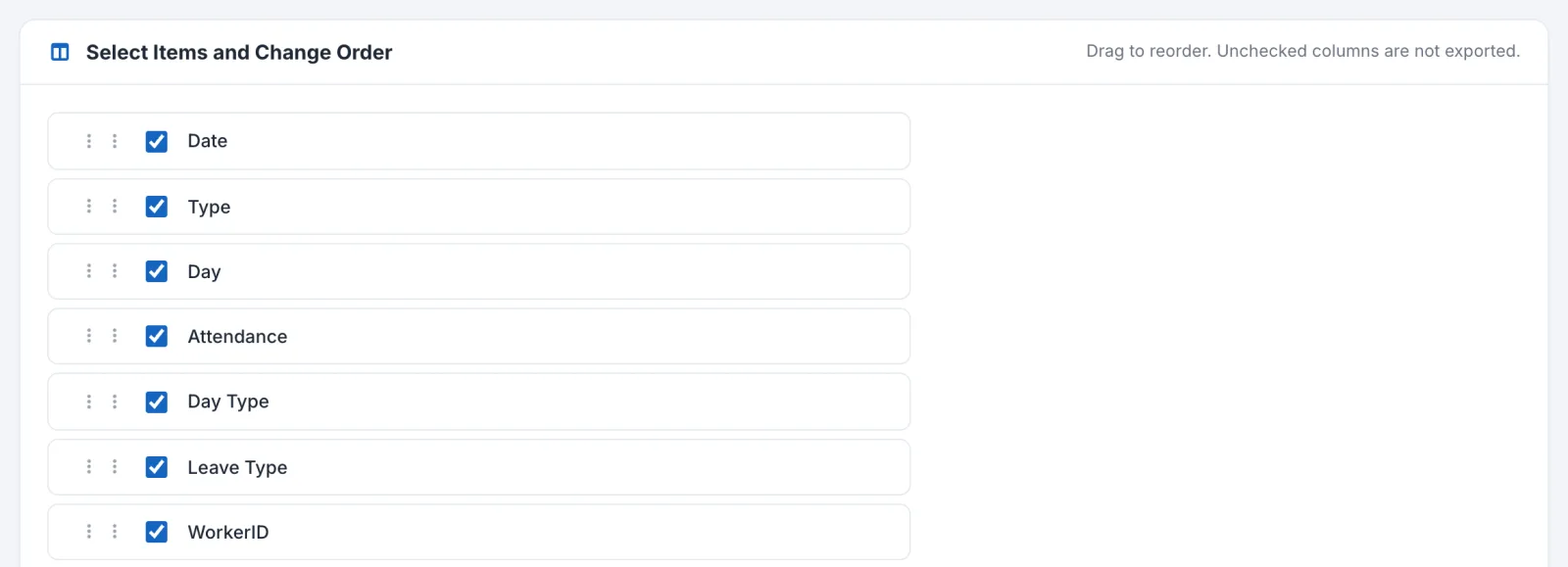
In “Select Items and Change Order”, you can choose the columns to include.
- Unchecked columns are not exported.
- Drag the handle on the left to change the column order.
These changes are not saved. The list returns to its original state when you reopen the screen.
The columns shown depend on your settings.
Downloading the file
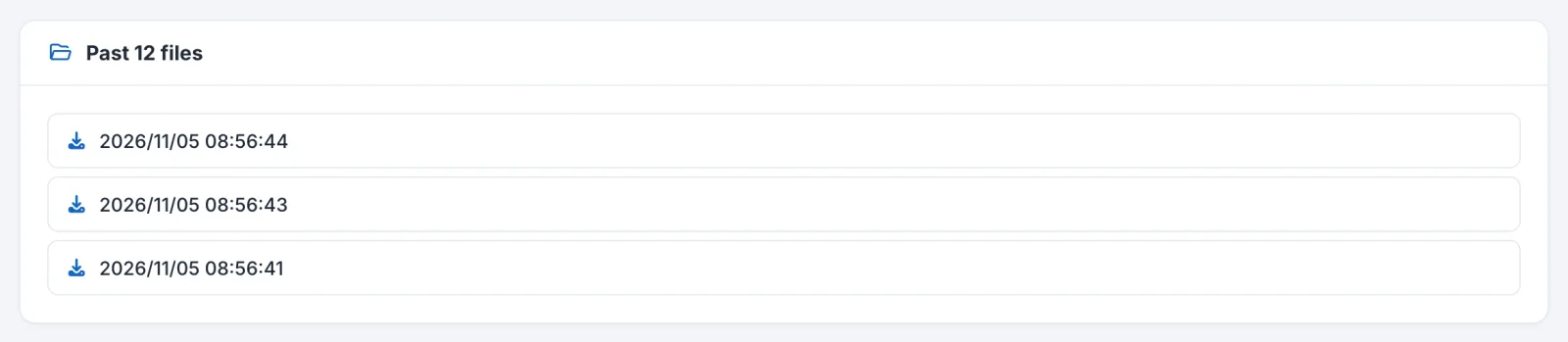
When processing finishes, reload the screen. The export date and time appears in “Past 12 files”. Press it to download.
- The file is a ZIP. It contains CSV or XLSX files.
- Exports over 3,000 records are split into several files.
- “Past 12 files” shows the 12 most recent exports.
If you export more than once on the same day
A new export on the same day currently overwrites the previous file, and every row in “Past 12 files” downloads the most recent file. Save each file before you start the next export.
Getting an email when it’s ready
If you turn on “Ready to Download Notification” in Profile, you receive an email when the download is ready. See Account information and notification settings.
If the export doesn’t work
You want to cancel
Pressing “Cancel” during processing returns the screen to normal, but processing currently doesn’t stop, so a file may still be added to “Past 12 files”.
The file does not appear
An export that takes too long may stop before it finishes. If nothing appears in “Past 12 files” after a while, shorten the period or choose a Passenger to reduce the number of records, then try again.