
HELP CENTER
Reading the Calendar
The Calendar shows the Holidays and Working Days of each Work Schedule by year. If editing is enabled for your company, you can also register Holidays and send change requests.
Last updated: 2026-11-04
Opening the Calendar
Open Calendar under “Work Rules” in the left menu. If there is more than one Work Schedule, choose a Work Schedule first.
- Changing the year: Choose a year from the dropdown at the top of the screen. You can choose from last year up to two years ahead.
- Changing the view: Switch between Calendar (a 12-month year calendar) and List (a list of Holidays and Working Days).
- Changing the Work Schedule: If there is more than one, switch using the dropdown at the top.
When you click a date (tap on a phone), the day-of-week type for that day and the names of any registered Holiday or Working Day appear on the right.
If the editing controls do not appear, editing is disabled in your settings. Please contact DriveZ. You can still view the calendar in that case.
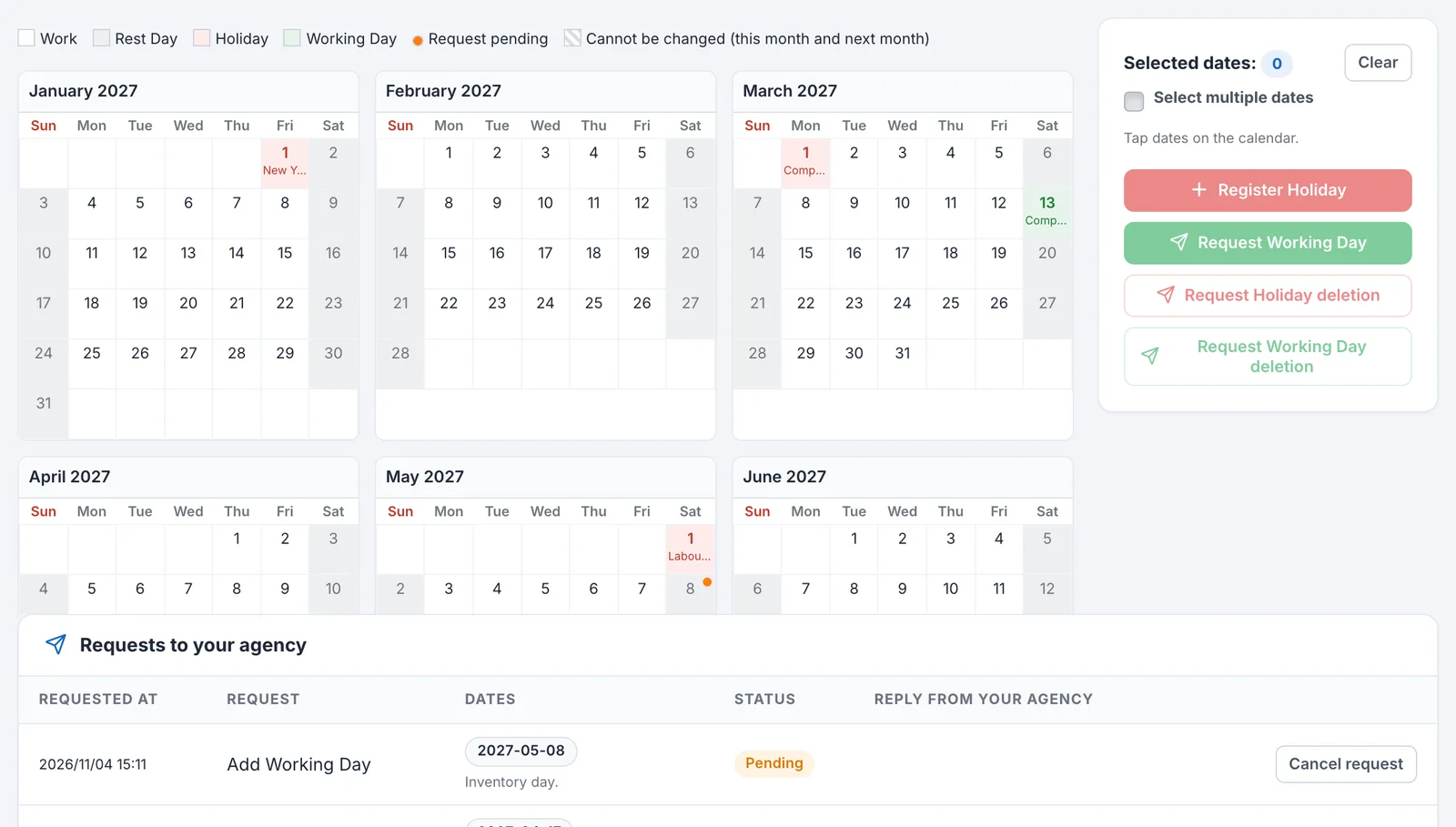
Reading the colors
| Display | Meaning |
|---|---|
| White | Work (a working day of the week) |
| Gray | Rest Day (a non-working day of the week) |
| Light red | Holiday |
| Light green | Working Day |
| Orange dot | Request pending (a date with a pending request) |
| Faded with diagonal lines | Cannot be changed (this month and next month). Shown only for companies with editing enabled |
On Holiday and Working Day dates, the name appears under the date.
Dates you can change
You cannot change dates in the current month or next month. You can change dates from the 1st of the month after next onward. For example, during November, dates from January 1 onward can be changed.
This rule applies to everything: registering Holidays, renaming, and requests to add or delete Working Days.
List of actions
| Action | Button on the screen | When it takes effect |
|---|---|---|
| Register a Holiday | Register Holiday | Immediately |
| Rename a Holiday or Working Day | Edit name | Immediately |
| Add a Working Day | Request Working Day | Request to DriveZ |
| Delete a Holiday | Request Holiday deletion | Request to DriveZ |
| Delete a Working Day | Request Working Day deletion | Request to DriveZ |
For the steps for each, see the following articles.
Checking the status of requests
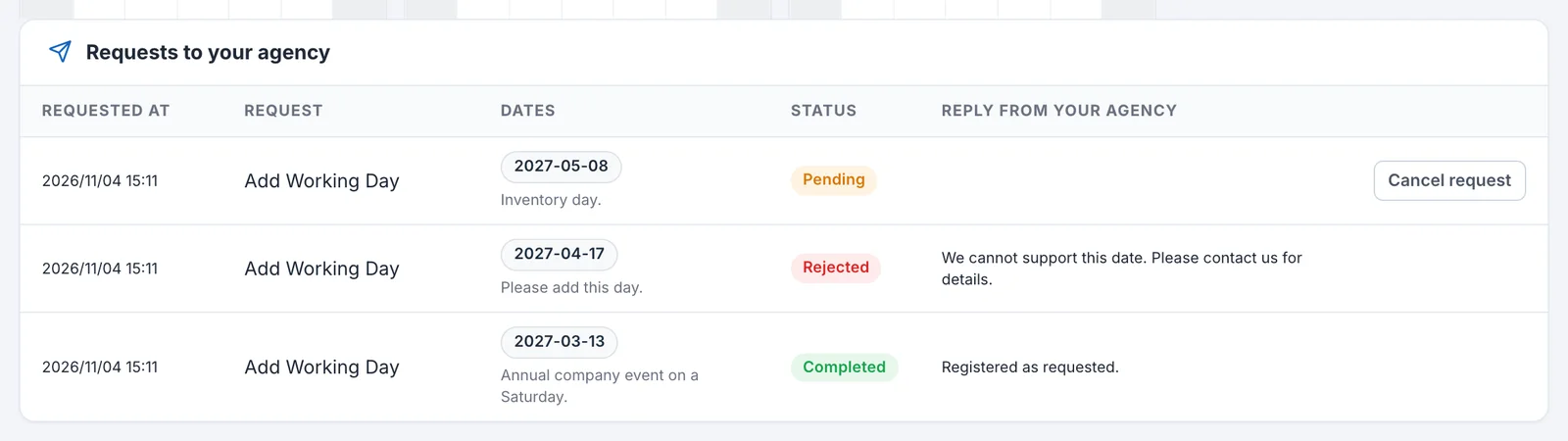
The Requests to your agency table below the calendar lists your past requests, newest first. You can see the date and time, type, dates, status (Status), and the reply from DriveZ (Reply from your agency). For details, see Sending requests and reading their status.
Checking the change history
Change History, below that, shows the change history of this calendar. It includes changes made by your company and changes made by DriveZ.
| Column | Description |
|---|---|
| Date & Time | When the change was made |
| Changed by | Who made the change |
| Changed via | How the change was made |
| Action | Added / Updated / Deleted |
| Before / After | The values before and after the change (type, date, name) |