
HELP CENTER
Requesting a Working Day or a Holiday deletion
Adding a Working Day and deleting a Holiday or Working Day are done by sending a request to DriveZ. Check the result in Requests to your agency on the Calendar screen.
Last updated: 2026-11-04
Actions that need a request
You cannot make the following three changes directly on the screen. You send them to DriveZ as a request, and DriveZ reviews and applies them.
| Button on the screen | Request type (Request) |
|---|---|
| Request Working Day | Add Working Day |
| Request Holiday deletion | Delete Holiday |
| Request Working Day deletion | Delete Working Day |
Registering a Holiday and renaming one do not need a request. See Registering Holidays and renaming them.
If the editing controls do not appear, editing is disabled in your settings. Please contact DriveZ.
Sending a request
As with registering a Holiday, you can request dates from the 1st of the month after next onward. For example, during November, dates from January 1 onward can be requested. You cannot request dates in the current month or next month.
- Open Calendar in the left menu.
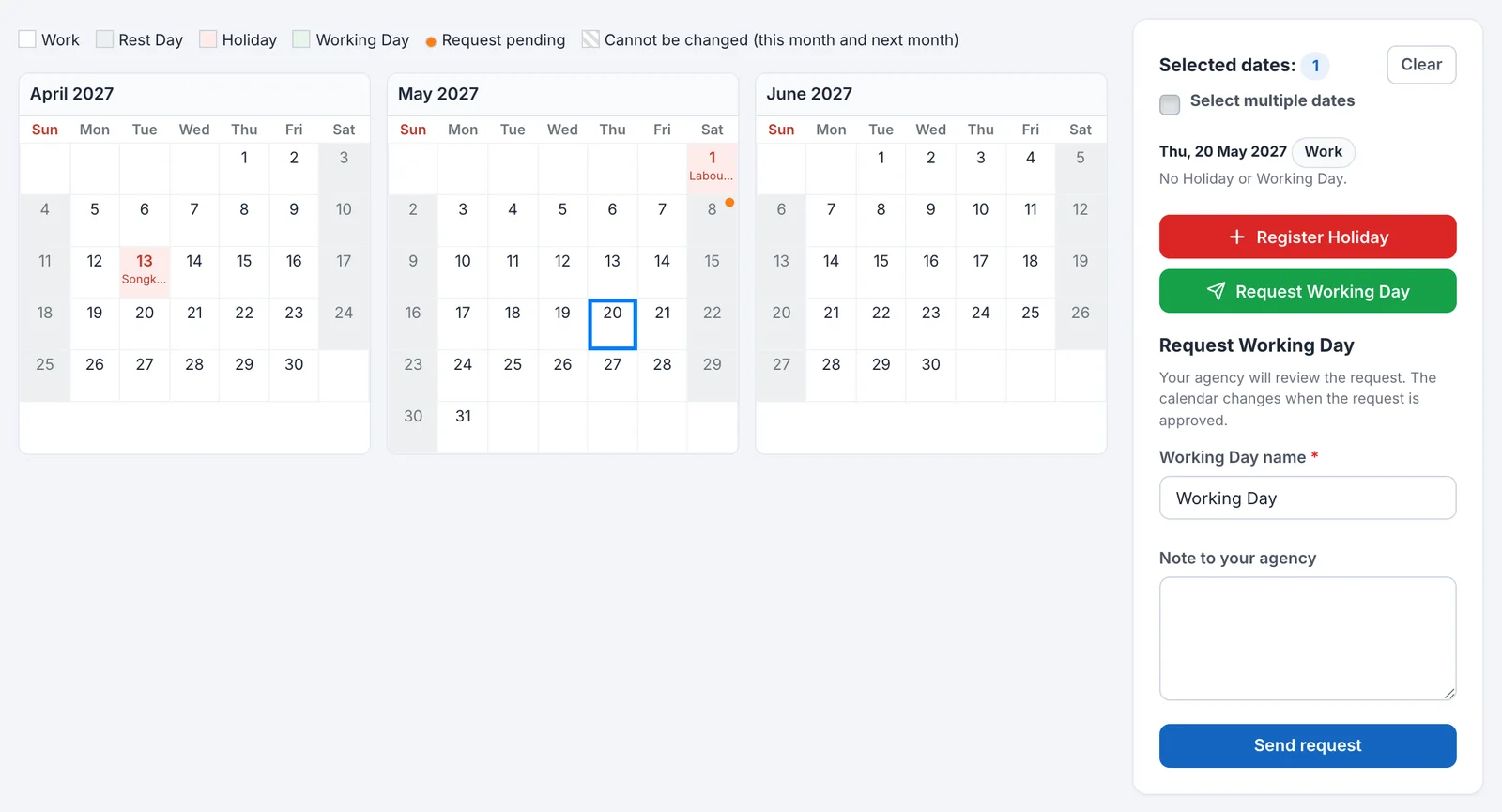
- Click the target date. To select several dates, check Select multiple dates. You can select up to 100 dates at a time.
- A button that fits the selected day appears. For an empty day, click Request Working Day. For a Holiday, click Request Holiday deletion. For a Working Day, click Request Working Day deletion.
- Fill in the fields.
- Working Day name: Required only when adding a Working Day. The default is “Working Day”.
- Note to your agency: A note for DriveZ. Optional, up to 1000 characters.
- Click Send request.
When the request is sent, “Your request has been sent to your agency.” appears.
The request is not sent if the selection includes any of the following dates. The screen shows the dates and the reason, so remove the affected dates and send the request again.
- A date that already has a Holiday or Working Day, when adding a Working Day
- A date with no Holiday or Working Day, when requesting a deletion
- A date that already has a pending request
Request status
Check the table under Requests to your agency, below the calendar.
| Status | Meaning |
|---|---|
| Pending | Waiting for DriveZ to act |
| Completed | DriveZ approved the request. Check the calendar for the result |
| Rejected | DriveZ did not accept the request |
| Cancelled | You cancelled the request |
Dates with a pending request have an orange dot (Request pending) on the calendar.
Cancelling a request
You can cancel only Pending requests.
- In the Requests to your agency table, click Cancel request on the row of the request you want to cancel.
- When “Cancel this request?” appears, confirm.
After you cancel, “The request has been cancelled.” appears and the status becomes Cancelled. You cannot cancel a request that DriveZ has already handled.
Checking the result
You are not notified of the result by email or otherwise. Check the Requests to your agency table on the Calendar screen.
| Column | Description |
|---|---|
| Requested at | The date and time you sent the request |
| Request | The request type |
| Dates | The target dates. If you entered a note, it appears under the dates |
| Status | The request status |
| Reply from your agency | The reply from DriveZ. Blank if there is none |
When there are no requests, “No requests yet.” appears. If there are more than 10, use the page controls below the table to see older requests.