
HELP CENTER
Registering Holidays and renaming them
If editing is enabled for your company, you can register Holidays on dates from the 1st of the month after next, and rename Holidays and Working Days. Both take effect immediately.
Last updated: 2026-11-04
Before you start
Registering a Holiday and renaming one take effect right away, without a request to DriveZ.
If the editing controls do not appear, editing is disabled in your settings. Please contact DriveZ.
Dates you can change
You cannot change dates in the current month or next month. You can change dates from the 1st of the month after next onward. For example, during November, dates from January 1 onward can be changed.
Dates in the current month and next month appear faded with diagonal lines on the calendar. If you try to select one, a message appears saying “Dates in this month and next month cannot be changed.” You also cannot register dates later than December 31 two years from now.
Registering a Holiday
- Open Calendar in the left menu.
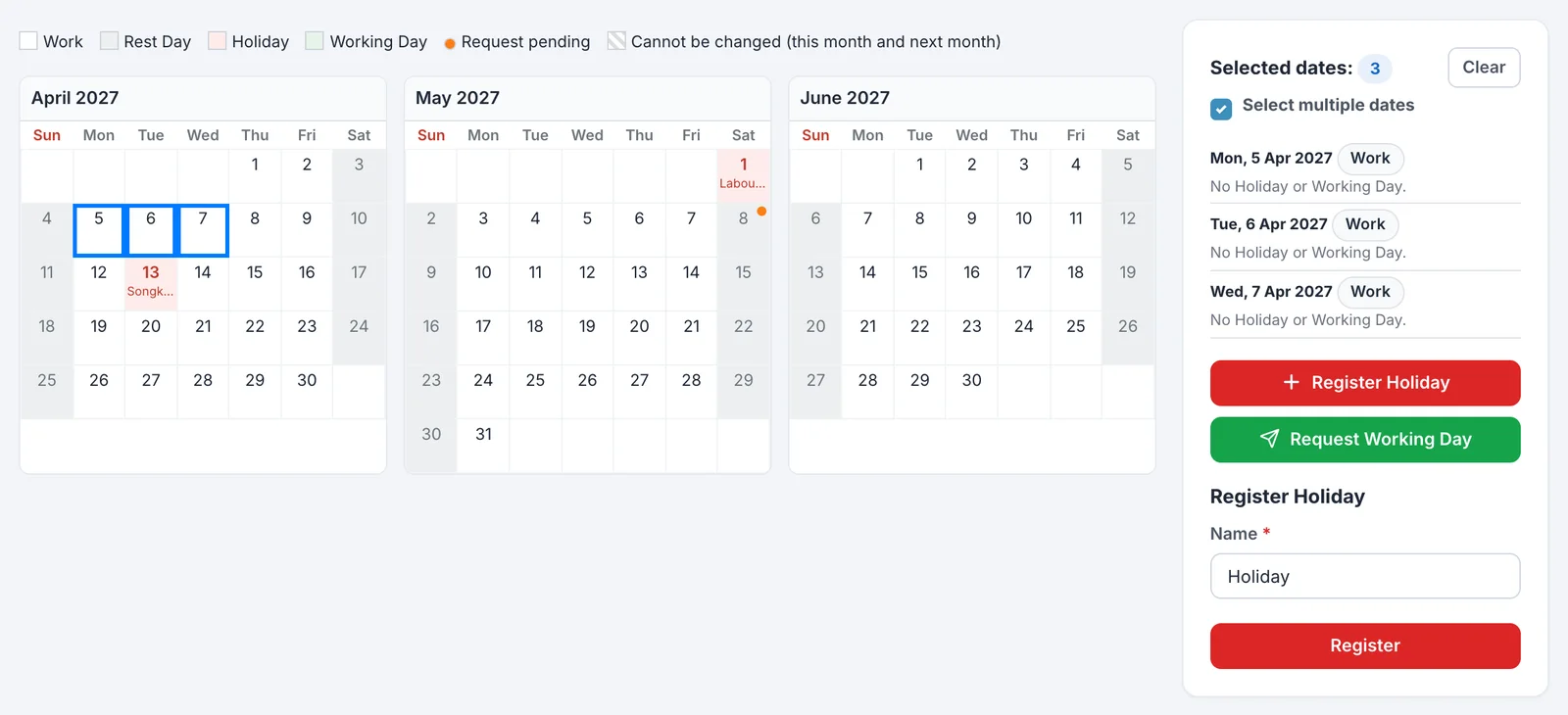
- Click the date you want to make a Holiday. To select several dates, check Select multiple dates on the right, then click the dates one by one. To start over, click Clear.
- Click Register Holiday.
- Enter a name. The default is “Holiday”.
- Click Register.
When registration succeeds, “N Holiday(s) registered.” appears and the calendar is updated.
- You can select up to 100 dates at a time.
- You can also register a Holiday on a Rest Day.
- The same name is applied to all the dates you selected. If you want different names, register them separately.
Renaming
You can rename Holidays and Working Days without a request. You cannot change the date or the type.
- In the Calendar view, select just one day whose name you want to change.
- Click Edit name.
- Change the name and click Save.
In the List view, you can open the same screen from Edit on each row. For dates in the current month and next month, a lock icon is shown instead of Edit.
If you save without changing the name, nothing is recorded in the change history.
When registration fails
If even one of the selected dates is one of the following, none of the dates are registered. The screen shows the affected dates and the reason.
| Reason | Message |
|---|---|
| A date in the current or next month | Dates in this month and next month cannot be changed. |
| A date beyond the allowed range | Please select a date up to (date). |
| A date that already has a Holiday or Working Day | A Holiday or Working Day is already registered. |
| A date that has a pending request | A request for this date is already pending. |
Remove the affected dates from your selection and register again.
Registrations and name changes are recorded in Change History below the calendar.
Deleting an existing Holiday
Deleting a Holiday or Working Day is done by sending a request to DriveZ. See Requesting a Working Day or Holiday deletion.