
HELP CENTER
Viewing a Work Schedule
Work Schedule shows the working hours and rules that apply to your company's drivers. The screen is view-only. To make changes, please ask DriveZ.
Last updated: 2026-11-04
Opening a Work Schedule
Open Work Schedule under “Work Rules” in the left menu.
- If your company has only one Work Schedule linked, its details open right away.
- If there is more than one, the “Select a Work Schedule” list appears. Choose a name to open its details.
- If none is linked, “No Work Schedule is linked to your company.” appears. Please check with DriveZ.
Using the switch at the top of the details screen, you can move to another Work Schedule or to the Calendar of the same Work Schedule.
What you can see
The screen is view-only. “This page is view only.” is shown.
| Section | Description |
|---|---|
| Basic Information | The name and the WorkSchedule Type (Fixed Daily Hours or Fixed Daily Times) |
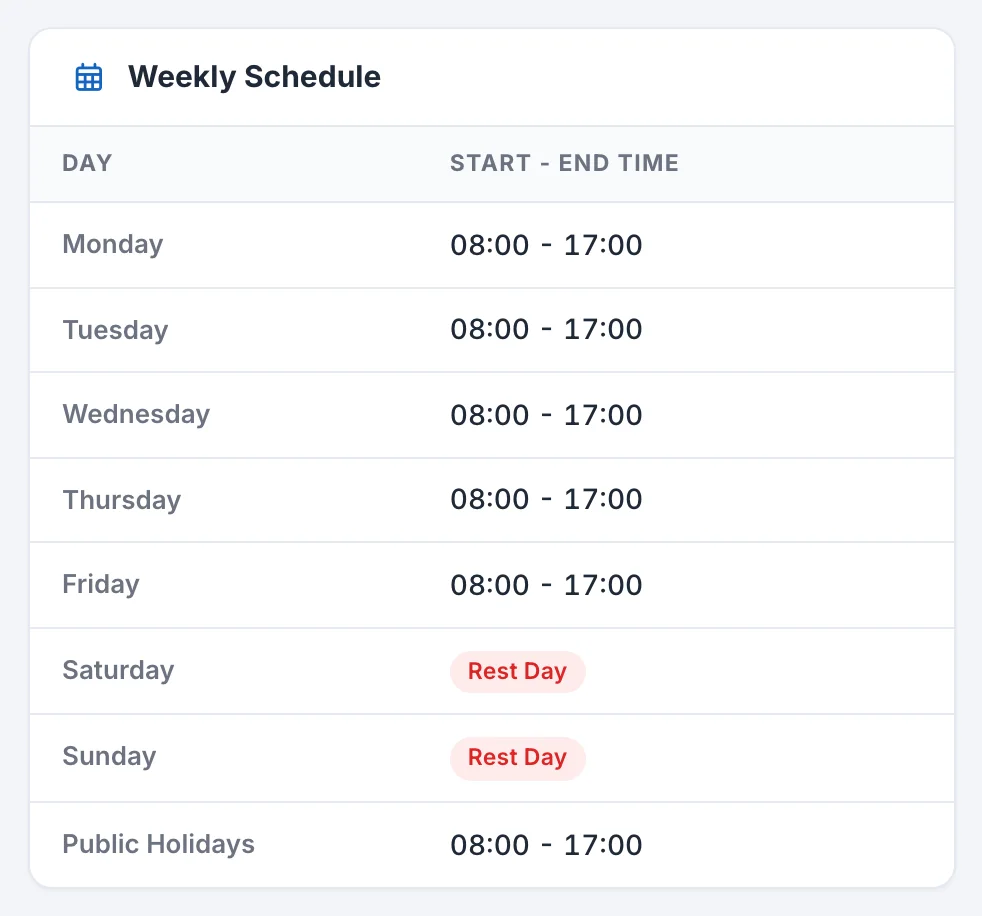
| Weekly Schedule | Working time for each day of the week (Hours Per Day for Fixed Daily Hours, Start - End Time for Fixed Daily Times). Rest days are shown as Rest Day. The last row shows the Public Holidays setting |
| Regular Working Days | Rules for regular working days |
| Rest Day | Rules for work done on a rest day |
| Public Holidays | Rules for work done on a public holiday |
| Company Working Day | Rules for work done on a Working Day in the Calendar |
Each rule, such as Regular Working Days, shows “Yes” if it is set and “Disabled” if it is not used. A “Disabled” box shows “Not configured”. The contents of a rule list settings such as breaks (Break), rounding up, and Double Overtime, showing only the items that are set.
When you want to make a change
You cannot change the contents of a Work Schedule from this screen. To make a change, please contact DriveZ.
Registering or changing Holidays and Working Days is done in the Calendar, not in the Work Schedule.