
HELP CENTER
Inviting family or colleagues to a group chat
Issue an invitation code to invite family or colleagues, then create a group chat with them. You can also delete a group you created.
Last updated: 2026-10-05
Steps for the person inviting
- Open “Invitations”
- Tap “Issue new code” to generate an invitation code
- Share the code with the person you want to invite
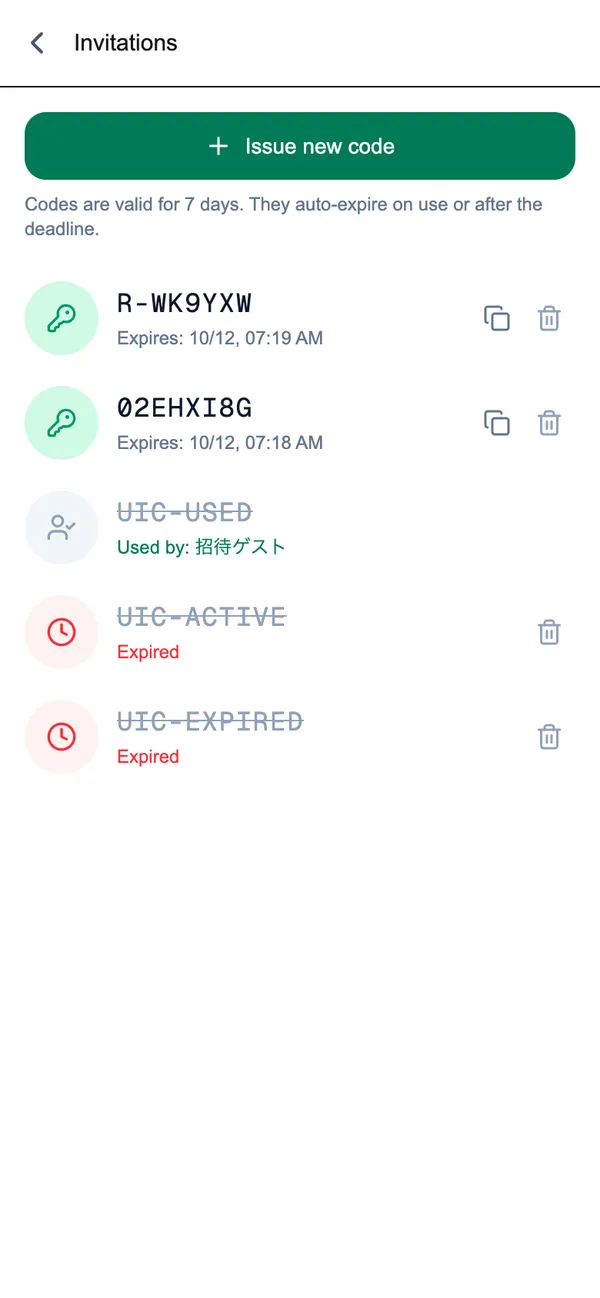
The code is valid for 7 days from when it’s issued. It stops working once it’s used, or once the 7 days are up.
Steps for the person being invited
- Install the DDash Passenger app
- From the login screen, go to invitation code entry
- Enter the code you received and sign in
Creating the group chat
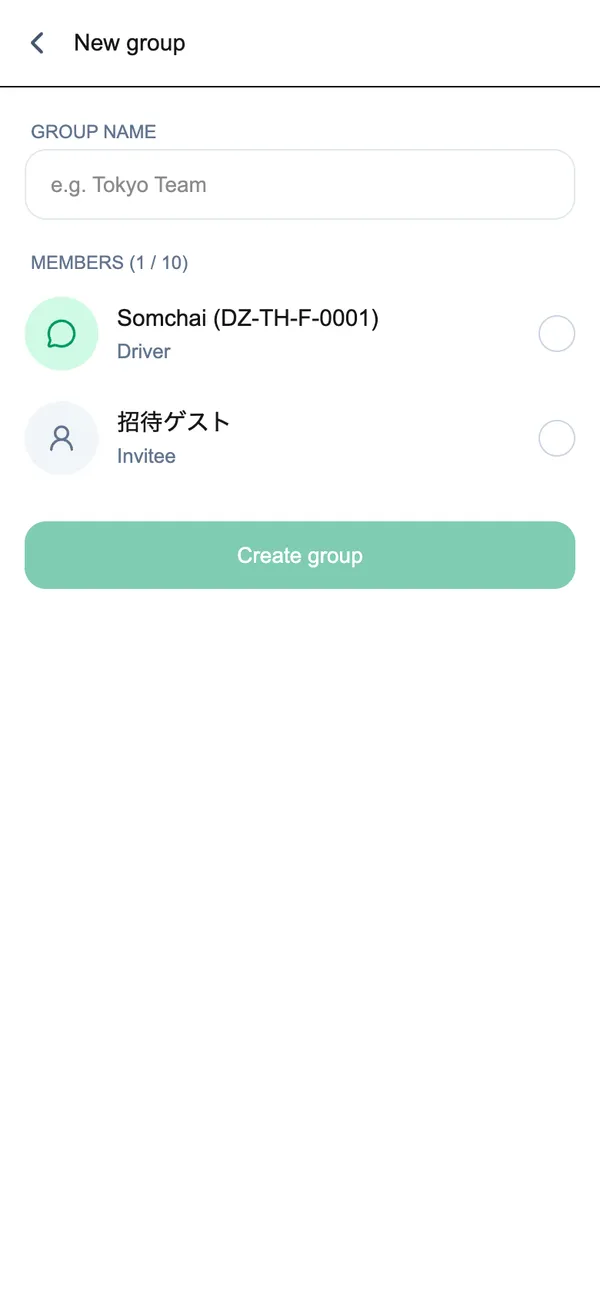
Once the invited person has signed in, the person who invited them can create the group chat from “New group”.
- Open “New group”
- Enter a group name
- Choose members — only your own drivers and people you’ve invited can be added, and there’s a limit on the number of members
- Create the group
Mentioning members in a group
In a group chat, you can use ”@” to mention a specific member.
Deleting a group you created
The person who created a group can delete it.
- Open the group’s chat
- Tap the settings icon at the top of the screen to open “Manage group”
- Tap “Delete group”
- When “Delete this group? It will disappear for all members. This can’t be undone.” appears, choose “Delete” (or “Cancel” to keep it)
A deleted group disappears from every member’s screen, including invited members and drivers, and can’t be restored. Only the person who created the group can delete it.