
HELP CENTER
Chatting with your driver
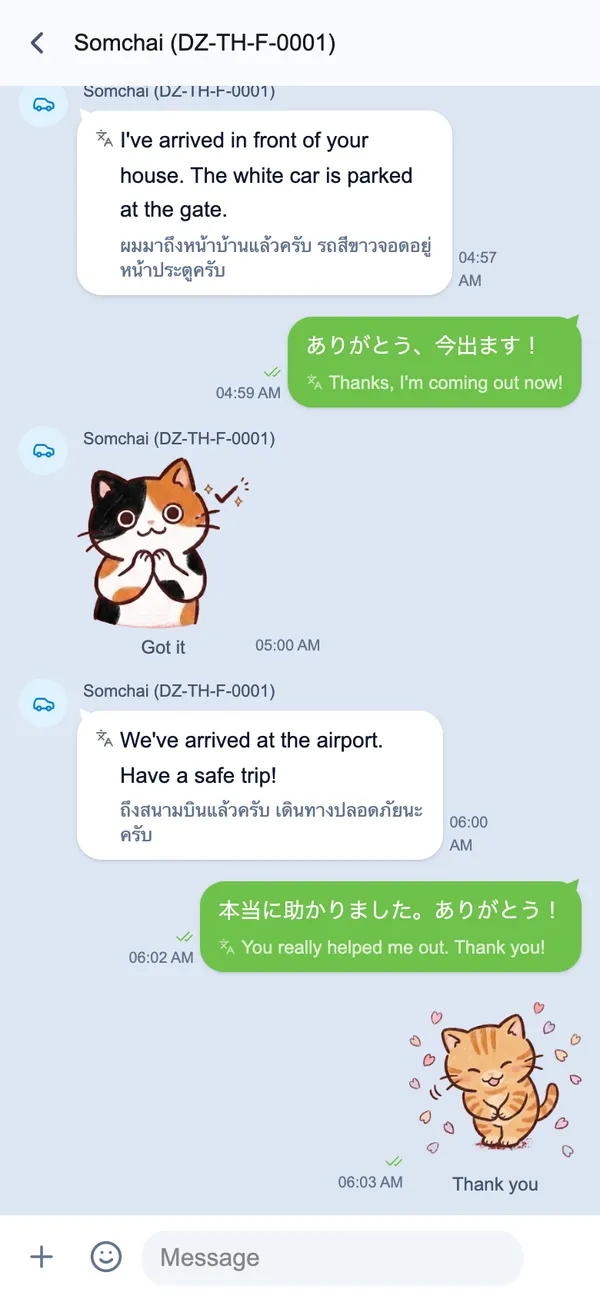
This is your 1:1 chat with your assigned driver. Messages you send are automatically translated, and messages you receive show the translation first, with the original underneath.
Last updated: 2026-10-05
Automatic translation
In the chat with your assigned driver, messages you send are automatically translated between Japanese, English, and Thai. Messages you receive show the translation first, with the original underneath. “Translating…” is shown while a message is being translated. Images and files aren’t translated.
Calling your driver
The phone icon at the top of the chat lets you call your driver. Calls only go from passenger to driver — your driver’s phone number is never shown to you.
Substitute drivers
A temporary substitute driver may sometimes handle your chat. When this happens, you’ll see a “Substitute” badge along with the date the substitution ends.
Read receipts
A sent message shows one checkmark. Once your driver has read it, it shows two green checkmarks.
Sharing a destination
Links in messages are clickable. When sharing a destination, share a Google Maps link for accuracy.
Don’t use personal LINE or similar apps
Messages sent over personal LINE aren’t translated, and DriveZ can’t see the conversation, which leads to miscommunication and trouble. In DZ Chat, the auto-translated conversation stays in the app.
About notifications
Push notifications for new messages just say “You have a new message” — the message text isn’t shown on your lock screen. Check the chat list for unread-count badges.
When the driver hasn’t replied
If the driver hasn’t replied for a while, a message from “Auto Reply” may appear in the conversation, prompting the driver to respond.