
HELP CENTER
Viewing Worker information
In Worker List, you can see the drivers assigned to your company. Only for External Workers your company arranged yourselves, you can change the assigned Passenger.
Last updated: 2026-11-04
Finding a Worker
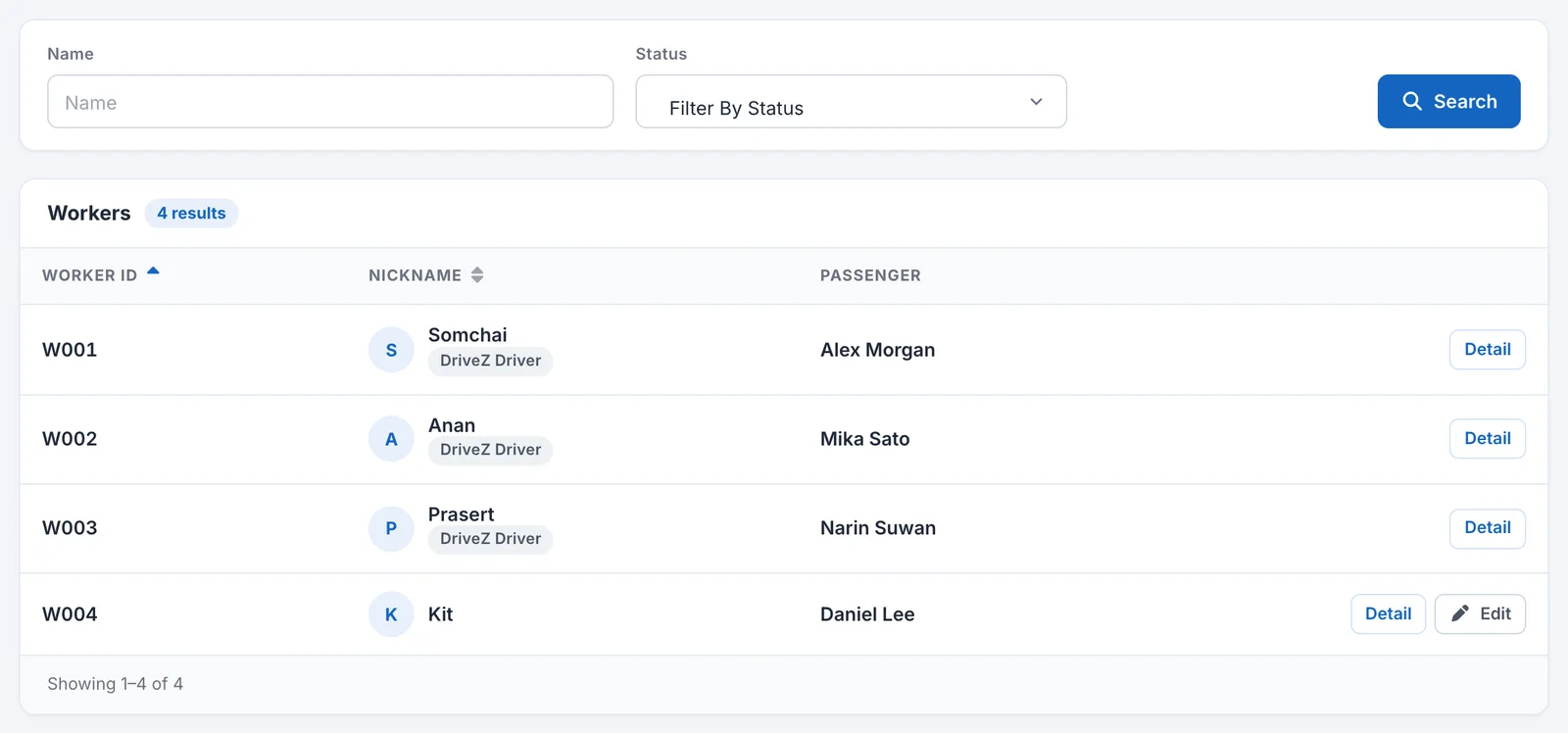
Open “Worker List” under “People” in the left menu to see the list of drivers (Workers) assigned to your company.
- Open “Worker List”.
- Enter a name in “Name” and click “Search”.
- Click “Detail” to open the details.
Depending on your settings, you can also filter by “Status” (Active / Inactive). If it does not appear, it is disabled in your settings. Please contact DriveZ.
The list shows the following. Click the “Worker ID” and “Nickname” headings to sort.
| Column | Description |
|---|---|
| Worker ID | The Worker’s code |
| Nickname | The nickname. DriveZ’s drivers have a “DriveZ Driver” badge. |
| Passenger | The assigned Passenger. For your company’s Passengers, click the name to open the details. If no one is assigned, ”-” is shown. |
What you can see
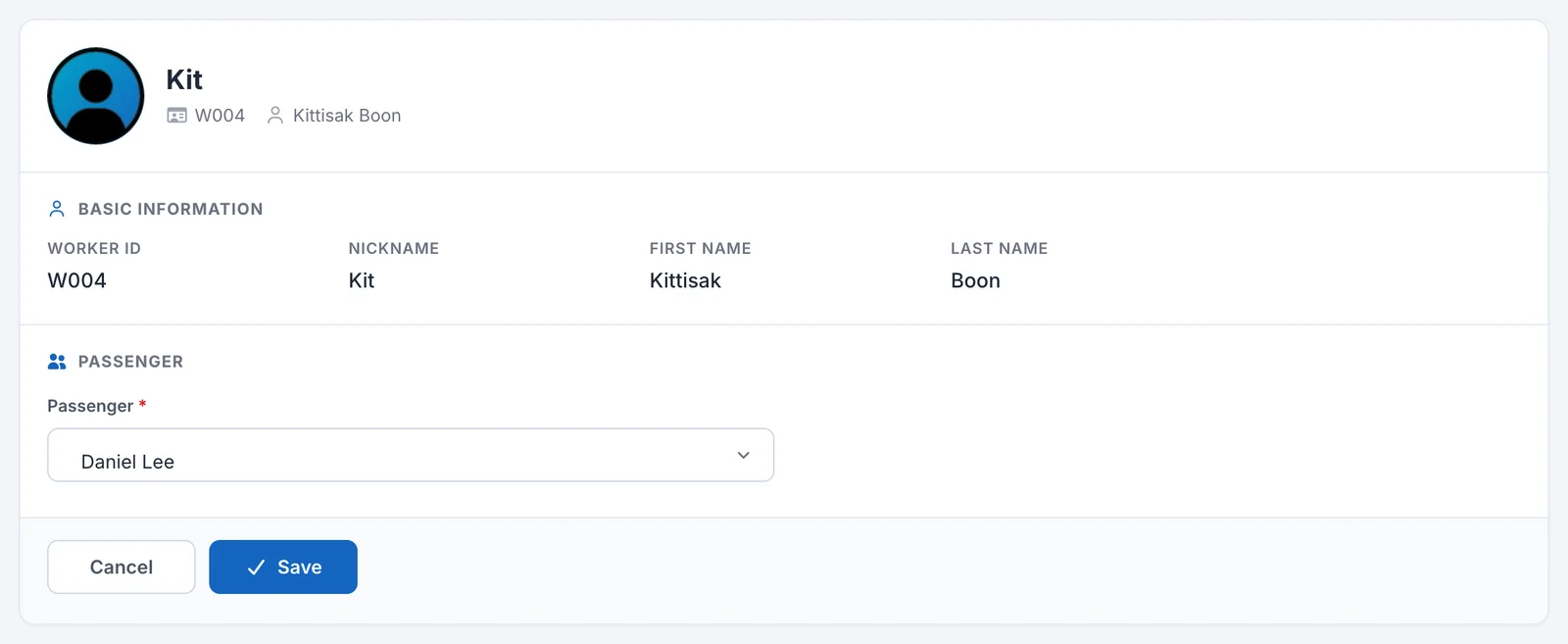
The details screen shows the following items.
| Section | Items |
|---|---|
| Top | Photo, nickname, Worker ID, name |
| Basic information | First Name, Last Name, Nickname, Worker ID |
| Passenger | Company, Passenger |
You cannot change a Worker’s information from this screen. To make a change, please ask DriveZ.
”DriveZ Driver” vs. External Worker
Workers fall into two types.
| Type | How to tell | Changing the Passenger |
|---|---|---|
| DriveZ Driver | A “DriveZ Driver” badge appears next to the nickname. | Not possible. Because these drivers are managed under your contract with DriveZ, please ask DriveZ to make the change. |
| External Worker | No badge. | Possible. Change it from “Edit”. |
An External Worker is a driver your company arranged yourselves. Because they are not covered by the contract with DriveZ, your company can change the Passenger they are assigned to.
Changing an External Worker’s Passenger
- In “Worker List”, click “Edit” on the External Worker’s row. You can also click “Change passenger” from the details screen.
- Choose the new assignee from the “Passenger” list.
- Click “Save”.
You can choose only your company’s Passengers. Only the Passenger can be changed on this screen. You cannot change any other items.
When you cannot change it
You cannot change the Passenger in the following cases.
| Situation | What to do |
|---|---|
| The Worker is on duty (has a check-in stamp but no check-out stamp) | Change it after the Worker checks out. |
| The Worker has a pending check-in request | Change it after the Worker checks out, or reject that request in Approvals and then change it. |
| There is no Passenger to choose | You cannot click “Save”. Please contact DriveZ. |