
HELP CENTER
Viewing Passenger information
In Passenger List, you can see the contact details and assigned Worker of your company's Passengers. To make changes, please ask DriveZ.
Last updated: 2026-11-04
Finding a Passenger
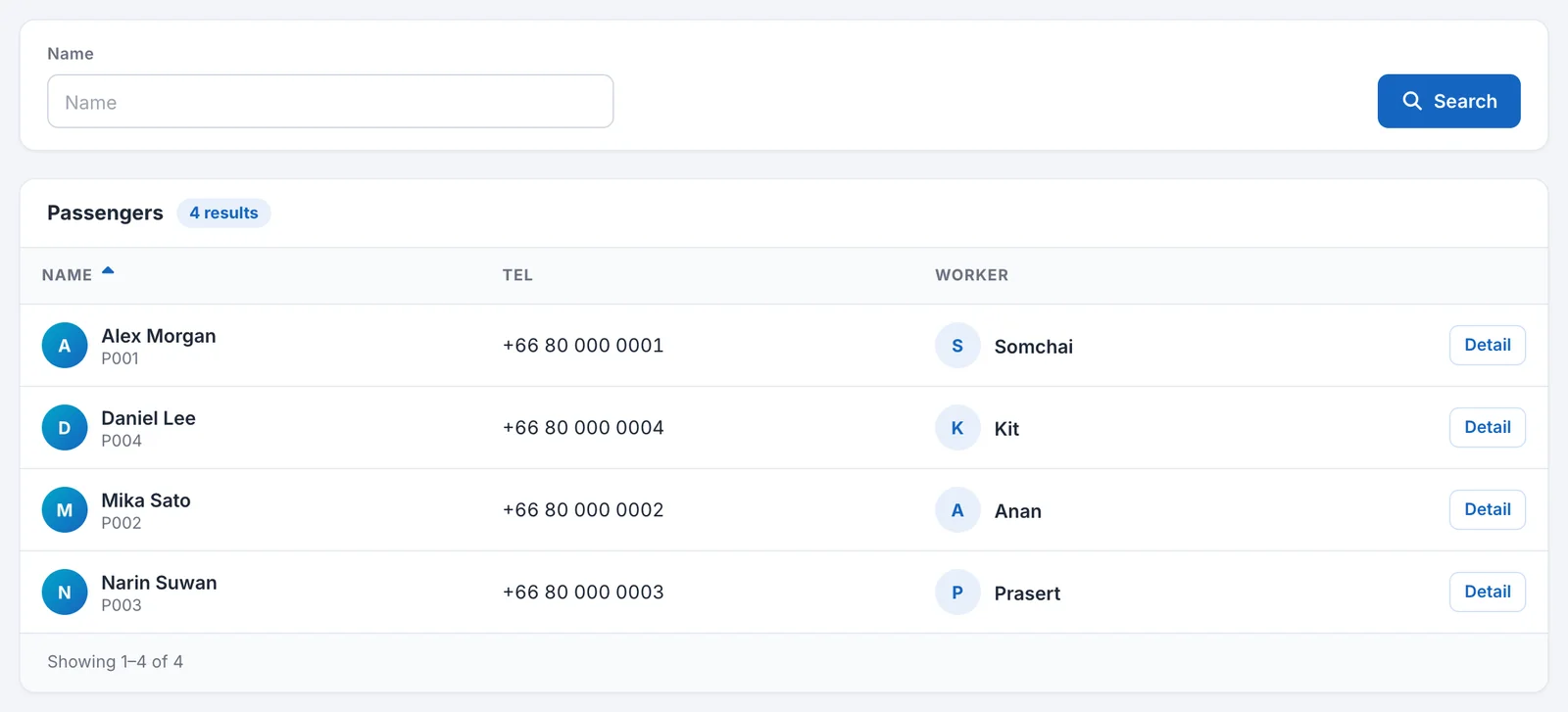
Open “Passenger List” under “People” in the left menu to see the list of Passengers registered to your company. This screen is view-only, and you cannot change any information.
- Open “Passenger List”.
- Enter a name in “Name” and click “Search”.
- Click a name in the list, or “Detail”, to open the details.
The list shows the following.
| Column | Description |
|---|---|
| Name | The Passenger’s name. If a code is registered, it appears under the name. Click the “Name” heading to sort. |
| Tel | Phone number |
| Worker | The assigned Worker. Click the name to open that Worker’s details. If no one is assigned, ”-” is shown. |
If there are many entries, use the page controls below the list.
What you can see
The details screen shows the following items. To go back to the list from the details, click “Back to list”.
| Section | Items |
|---|---|
| Top | Name, code, phone number |
| Basic information | First Name, Last Name, Tel, Address |
| Worker | The assigned Worker |
Items that are not registered show ”-”. Click a Worker’s name to open the Worker’s details.
When you want to change information
To change a Passenger’s name, phone number, address, or other details, please ask DriveZ. You cannot change them on this screen.
To change the assigned Worker, see Viewing Worker information. You can change it from Worker List only for drivers your company arranged yourselves.