
HELP CENTER
How to sign in, and what to do if you forget your password
Sign in with your email address and password at the URL DriveZ gave you. If you forget your password, please contact DriveZ.
Last updated: 2026-11-04
Signing in
Open the URL that DriveZ gave you and sign in with your email address and password. We recommend bookmarking the sign-in page.
- Open the URL you were given.
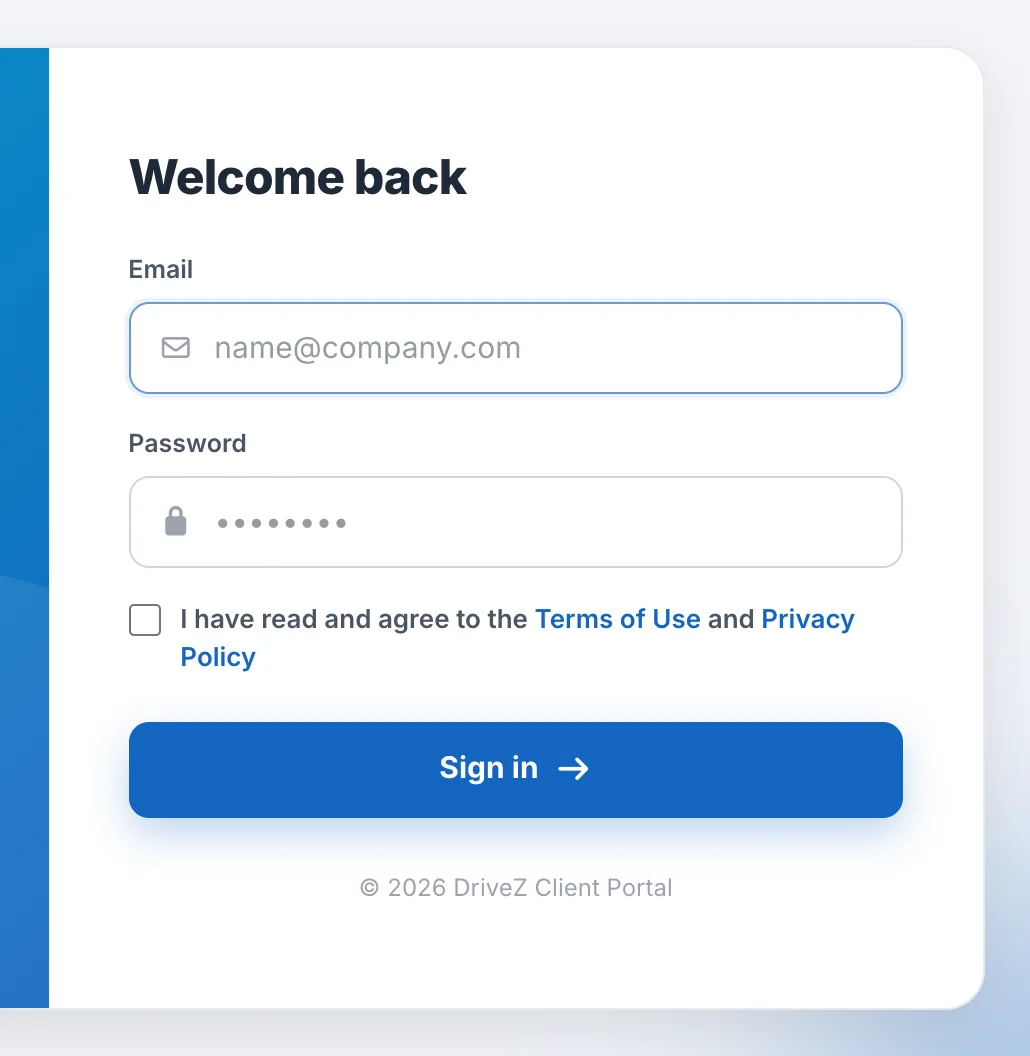
- On the “Welcome back” screen, enter your Email and Password.
- Check “I have read and agree to the Terms of Use and Privacy Policy”.
- Click “Sign in”.
After you sign in, the Timesheets List opens.
There is one email address and password per company. If you have not received them, please contact DriveZ.
If you cannot sign in
| Message | Cause and what to do |
|---|---|
| ”Please agree with TERMS OF USE and PRIVACY POLICY” | The agreement box is not checked. You must agree to the Terms of Use and Privacy Policy. Check the box and try again. |
| ”email or password is incorrect.” | The email address or password is wrong. Check what you entered. |
If your session expires and a different sign-in screen appears, open the URL that DriveZ gave you again.
If you forget your password
You cannot reset your password from the screen. Please contact DriveZ.
After you sign in, you can change your password from Profile. For details, see Account information and notification settings.
Changing the display language
You can change the display language after you sign in. The sign-in screen has no language switch.
- Click the language button on the right side of the header at the top of the screen.
- Choose from the “Language” list.
The available languages are English, Japanese, and Thai.
Signing out
- Click the account menu at the top right of the screen (the button showing your company name).
- Click “Sign out”.
You return to the sign-in screen.